KeY IDE
KeY IDE is an alternative user interface for KeY directly integrated into Eclipse. The goal of this project is to provide the same functionality as the original user interface of KeY. Up to now only the basics (proof tree navigation, auto mode, interactive rule application) are available.
The following sections illustrate the main features of the KeY IDE using screenshots. Each section contains numbered screenshots that explain a usage scenario step by step. Clicking on each picture produces a more detailed view. The screenshots may differ from the latest release.
Prerequisites
The KeY IDE is compatible with Eclipse Indigo (3.7) or newer.
Required update-sites and installation instructions are available in the download area.
Verify a method contract
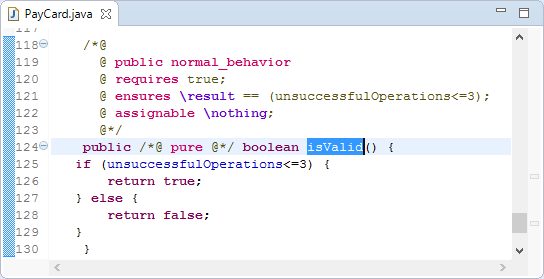
Select the method to verify.
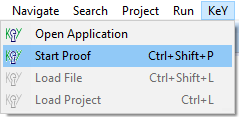
Verify a method contract Start proof via main menu item “KeY, Start Proof”.
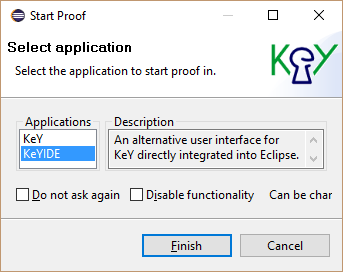
Verify a method contract Select Application “KeY IDE”.
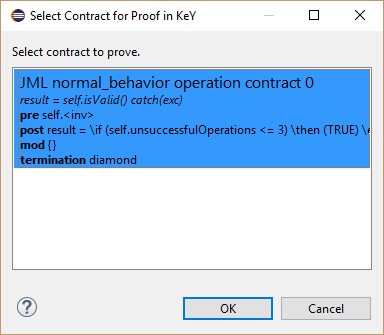
Verify a method contract Select method contract to prove.
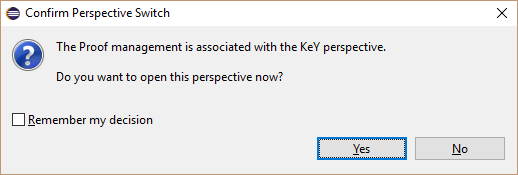
Verify a method contract Switch to perspective “KeY”.
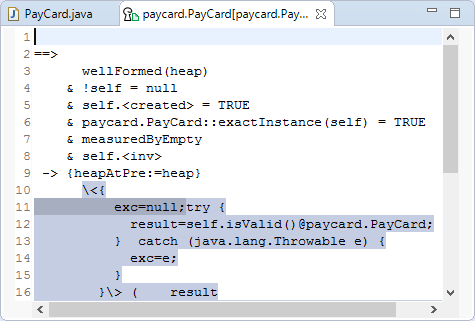
Verify a method contract Do proof directly in Eclipse.
Verify a method contract
Start auto mode
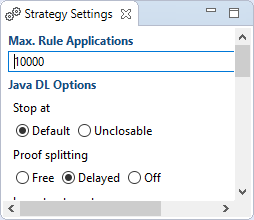
Change strategy settings if required.
Start auto mode Start auto mode via editor specifc toolbar item “Start Auto Mode”.

Start auto mode Wait while auto mode is active.

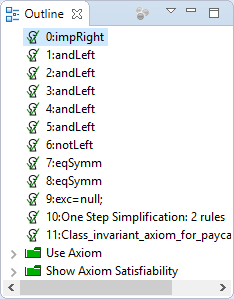
Start auto mode Inspect result.
Start auto mode
Stop auto mode when breakpoint is hit
Define a Line, Method or Java Exception breakpoint, a Watchpoint or a KeY Watchpoint as usual.
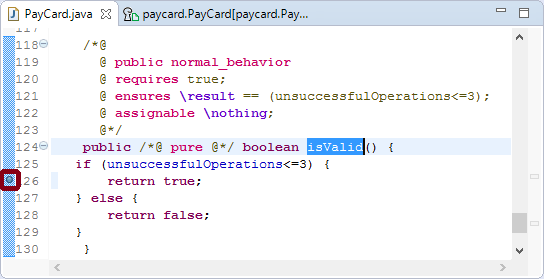
Stop auto mode when breakpoint is hit Select toolbar item “Stop at Breakpoints” before starting the auto mode.

Stop auto mode when breakpoint is hit Auto mode stops when breakpoint is hit.
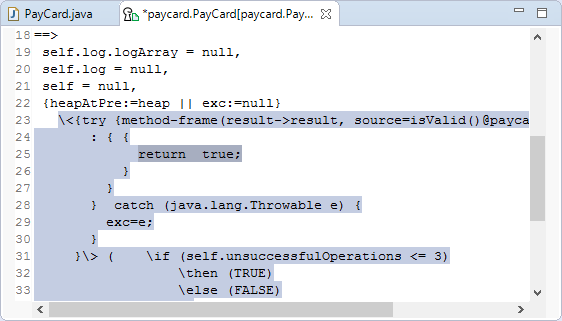
Stop auto mode when breakpoint is hit
Apply a rule interactively
Move the mouse over a term and apply a rule via the context menu.
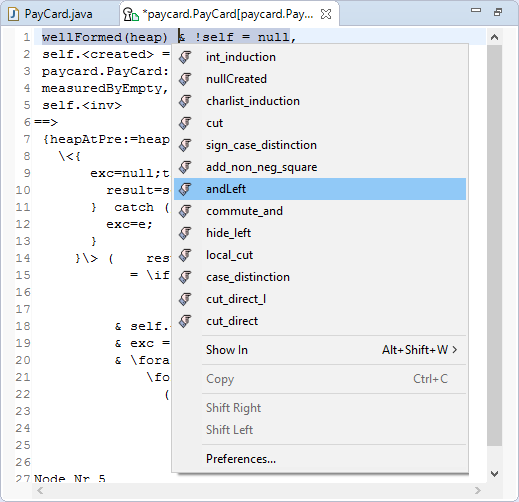
Apply a rule interactively
Generate a counter example
Select context menu item “Counterexample” of a goal.
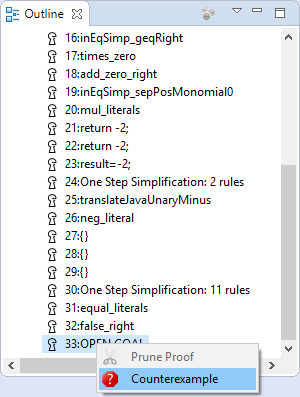
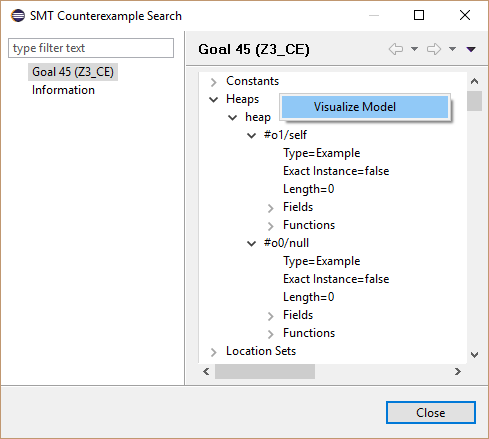
Generate a counter example Optionally visualize counter example via context menu item “Visualize Model”.
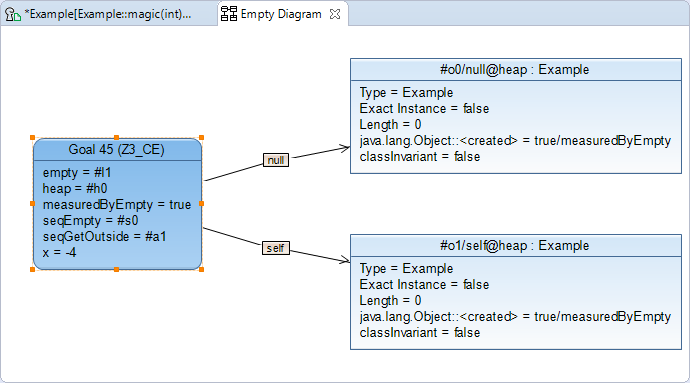
Generate a counter example Inspect the visualized counter example.
Generate a counter example
Generate test cases
Select toolbar item “Generate test cases for open goals”.

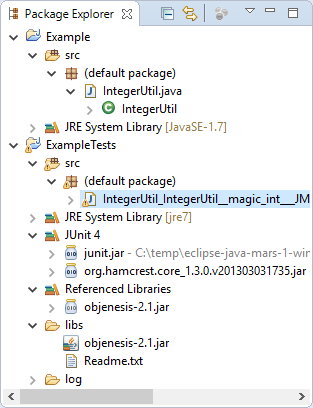
Generate test cases An additional Java project is created which contains the generated test cases. Follow the instructions in the Reame.txt file to add missing libraries.
Generate test cases